
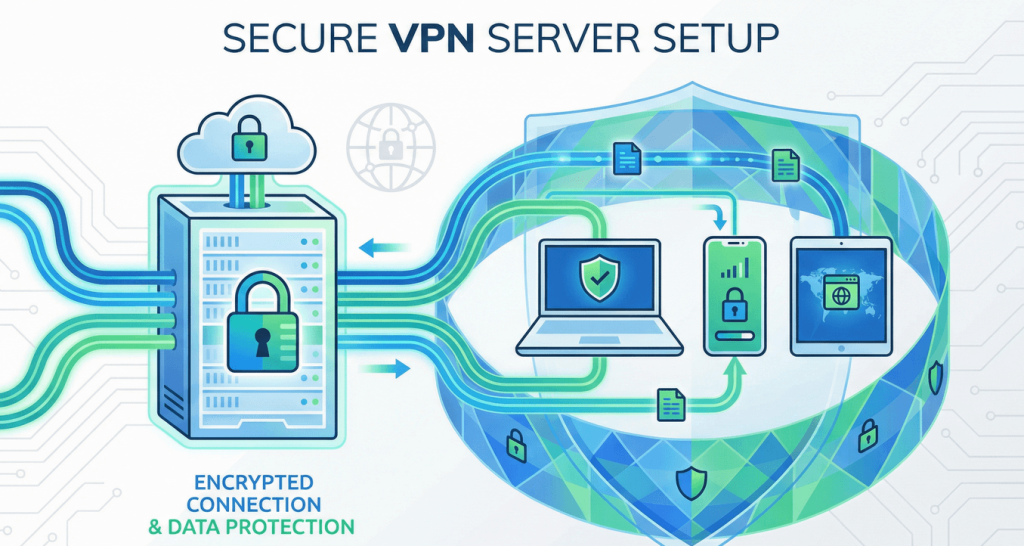
You want privacy online. You need secure connections when using public WiFi. You’re tired of paying monthly fees for VPN services. Here’s the good news: you can create your own VPN server on a VPS. This guide shows you exactly how to do it.
Key Takeaways
- Running your own VPN server gives you complete control over your data
- Setup takes 30-60 minutes even for beginners
- You need a VPS with at least 1GB RAM and Ubuntu installed
- OpenVPN and WireGuard are the two best VPN protocols to use
- Your own VPN server costs less than commercial VPN subscriptions
Why Build Your Own VPN Server?
Think of a VPN as a private tunnel for your internet traffic. Commercial VPN services own these tunnels. You share them with thousands of other users. You also trust these companies with your browsing data.
When you build your own VPN server, you own the tunnel. Only you use it. You control everything.
Here’s what you get:
- Full control over your connection logs and data
- Better speeds because you’re not sharing bandwidth
- Lower cost after initial setup
- A dedicated IP address that belongs to you
- Freedom to configure security exactly how you want
What You Need Before Starting
Let’s gather your tools first. You need three things:
1. A VPS (Virtual Private Server)
This is your server where the VPN lives. Get one with these minimum specs:
- 1GB RAM minimum (2GB works better)
- 20GB storage space
- Ubuntu 20.04 or 22.04 installed
- Root access to your server
2. Basic Command Line Knowledge
You don’t need to be a Linux expert. You just need to copy and paste commands. If you can follow a recipe, you can do this.
3. 30-60 Minutes of Time
Set aside an hour. Grab coffee. Get comfortable. You’ll have your VPN running by the time you finish.
How to Set Up OpenVPN on Your VPS
OpenVPN is the most popular VPN protocol. It’s secure, fast, and works on every device. Here’s how to install it.
Step 1: Connect to Your VPS
Open your terminal (Mac/Linux) or PuTTY (Windows). Connect to your VPS:
ssh root@your_vps_ip_address
Replace “your_vps_ip_address” with your actual server IP. Enter your password when asked.
Step 2: Update Your System
First, make sure everything is current. Run these commands:
apt update

apt upgrade -y
This takes 5-10 minutes. Your system is downloading updates.
Step 3: Download the OpenVPN Installation Script
A smart developer created a script that automates the hard work. Get it:
wget https://git.io/vpn -O openvpn-install.sh
Step 4: Run the Installation Script
Make the script executable and run it:
chmod +x openvpn-install.sh

./openvpn-install.sh
The script asks you questions. Here’s what to answer:
- IP address: Press Enter (it detects this automatically)
- Port: Use 1194 (default) or 443 if you’re behind strict firewalls
- Protocol: Choose UDP for speed or TCP for reliability
- DNS: Pick Google (8.8.8.8) or Cloudflare (1.1.1.1)
- Client name: Type any name like “phone” or “laptop”
The installation runs for 5-10 minutes. When it finishes, you get a .ovpn file. This is your VPN configuration file.
Step 5: Download Your Configuration File
The .ovpn file is on your server. You need it on your device. Download it using SCP or SFTP. On Mac/Linux:
scp root@your_vps_ip:/root/client.ovpn ~/Downloads/
Setting Up WireGuard (The Faster Alternative)
WireGuard is newer than OpenVPN. It’s faster and simpler. The code is cleaner, which means fewer security bugs.
Why Choose WireGuard?
- Connection speed is 2-3 times faster than OpenVPN
- Battery life is better on mobile devices
- Reconnection after network switches is instant
- Setup is even simpler
Installing WireGuard
Connect to your VPS and download the WireGuard script:
wget https://git.io/wireguard -O wireguard-install.sh

chmod +x wireguard-install.sh

./wireguard-install.sh
Answer the prompts (similar to OpenVPN). The script generates a QR code. You can scan this with your phone to connect instantly. No file transfers needed.
Connecting Your Devices to Your VPN
On Your Phone
Download the OpenVPN app (iOS/Android) or WireGuard app. Import your .ovpn file or scan the QR code. Tap connect. Done.
On Your Computer
Windows and Mac have built-in VPN clients. Import your configuration file through network settings. Or download the OpenVPN GUI for easier management.
Testing Your Connection
Connect to your VPN. Visit whatismyip.com. The IP address should match your VPS IP. If it does, congratulations! Your VPN works.
Security Best Practices
Your VPN is running. Let’s lock it down properly.
Enable the Firewall
Ubuntu includes UFW (Uncomplicated Firewall). Turn it on:
ufw allow 22/tcp

ufw allow 1194/udp

ufw enable
Change Your SSH Port
Hackers scan port 22 constantly. Move SSH to a different port. Edit the SSH config:
nano /etc/ssh/sshd_config
Change “Port 22” to “Port 2222” or any number above 1024. Save and restart SSH.
Create Regular Backups
Back up your VPN configuration files. Store them somewhere safe. If your VPS crashes, you can rebuild quickly.
Frequently Asked Questions
Why Choose VpsWala for Your VPN Server
Setting up your own VPN server starts with choosing the right VPS provider. VpsWala offers several advantages that make hosting your VPN simple and effective:
- Fast server deployment: Your VPS is ready in minutes, so you can start building your VPN right away
- High-speed connections: VpsWala’s network ensures your VPN runs fast, with minimal lag or slowdowns
- DDoS protection included: Your VPN server stays online even during attacks
- 24/7 technical support: If you run into issues during setup, expert help is available around the clock
- Multiple server locations: Choose from various data centers to get the best performance for your region
- Affordable pricing: Plans start at competitive rates that fit any budget
- Root access included: You get full control over your server to configure your VPN exactly how you want
- 99.9% uptime guarantee: Your VPN stays accessible whenever you need it
VpsWala makes the technical side easy, so you can focus on enjoying your private, secure VPN connection. Whether you’re a beginner setting up your first VPN or an experienced user who needs reliable infrastructure, VpsWala provides the foundation you need.


