
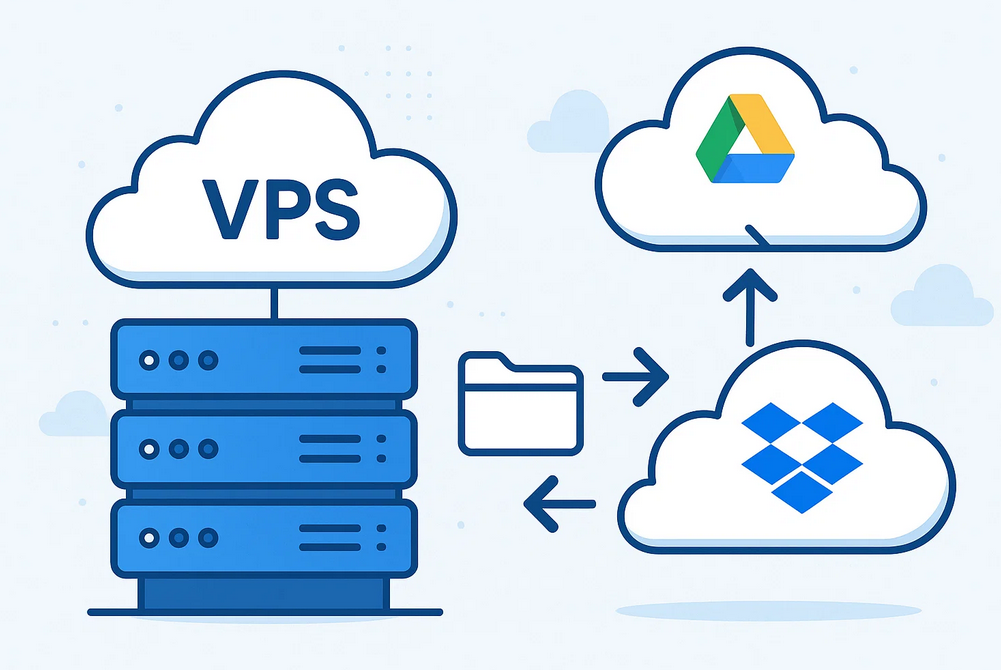
Can you imagine spending days setting up and tweaking a website, configuring an important project on your VPS, only for it all to vanish in one slip of the keyboard or system crash? Sounds terrifying, right? Here is how you can automate the backup of your VPS with Google Drive or Dropbox:
Automated backups are an absolute necessity for VPS owners and administrators alike, and don’t require being an expert Linux or Sysadmin user in order to do it effectively. Tools such as Rclone and Dropbox-Uploader make the task simple by pushing your backups directly into cloud storage like Google Drive or Dropbox in just a few steps.
This guide provides a step-by-step process for setting up automated backups on a Linux VPS, whether or not your primary platform is Windows and you only use SSH access. Protect your data today!
Why Backups Matter

Server crashes, hacks and accidental deletions happen at unexpected moments. Cloud backups provide an off-site option and are safer than keeping all your information only on your VPS…
Step 1: Install Rclone
sudo apt update
sudo apt install rclone -y
Step 2: Configure Google Drive Account
Start the Rclone Config Wizard:
- Type “n” for new remote and name it (e.g. “gdrive”)
- Select
drivefrom the list - Leave client ID/secret blank for default
- Use auto config – open the URL Rclone gives you, authorize it, paste back the code
Step 3: Create your Backup Folder
mkdir -p /var/backups/mybackupStep 4: Create Backup Script
nano /usr/local/bin/backup-to-drive.shStep 5: Automate with Cron
crontab -eAdd this line for backup operations at 2am daily:
0 2 * * * /usr/local/bin/backup-to-drive.shOption 2: Backup to Dropbox with Dropbox-Uploader
Clone Dropbox-Uploader:
git clone https://github.com/andreafabrizi/Dropbox-Uploader.gitConfigure it and follow browser prompts to authorize and paste the token into terminal.
Create and upload backup:
tar -czf "/backup-$(date +%F).tar.gz" /var/www
./dropbox_uploader.sh upload "/backup-$(date +%F).tar.gz" /vps-backups/
Step 4: Automate with Cron
crontab -e0 3 * * * /usr/local/bin/backup-to-dropbox.shTesting It All Works
Run your script manually to test, then verify the backup on Google Drive or Dropbox. Try restoring a file to make sure all is working correctly.
Also Check: How to Find Files with the fd Command in Linux
Troubleshooting Tips
- Rclone auth not working? Use
rclone authorizeon your local machine. - Cron not working? Make sure your script is executable and all paths are absolute.
- Quota issues? Clean up old backups or upgrade your plan.
Conclusion: Set It and Forget It
Your VPS now automatically protects your data. Even if you never need to restore, having regular cloud backups is peace of mind worth every minute spent setting them up. Do it today — your future self will thank you.


